Appearance
Cost Optimization & Tracking
Hydro-Calc isn't just about chemistry; it's about efficiency. One of the most powerful features of the platform is the ability to track your fertilizer spending and optimize your recipes to save money.
This guide covers how to set up cost tracking, optimize your mixtures for the lowest price, and project the total cost of your feed schedules.
1. Setting Up Costs on Your Shelf
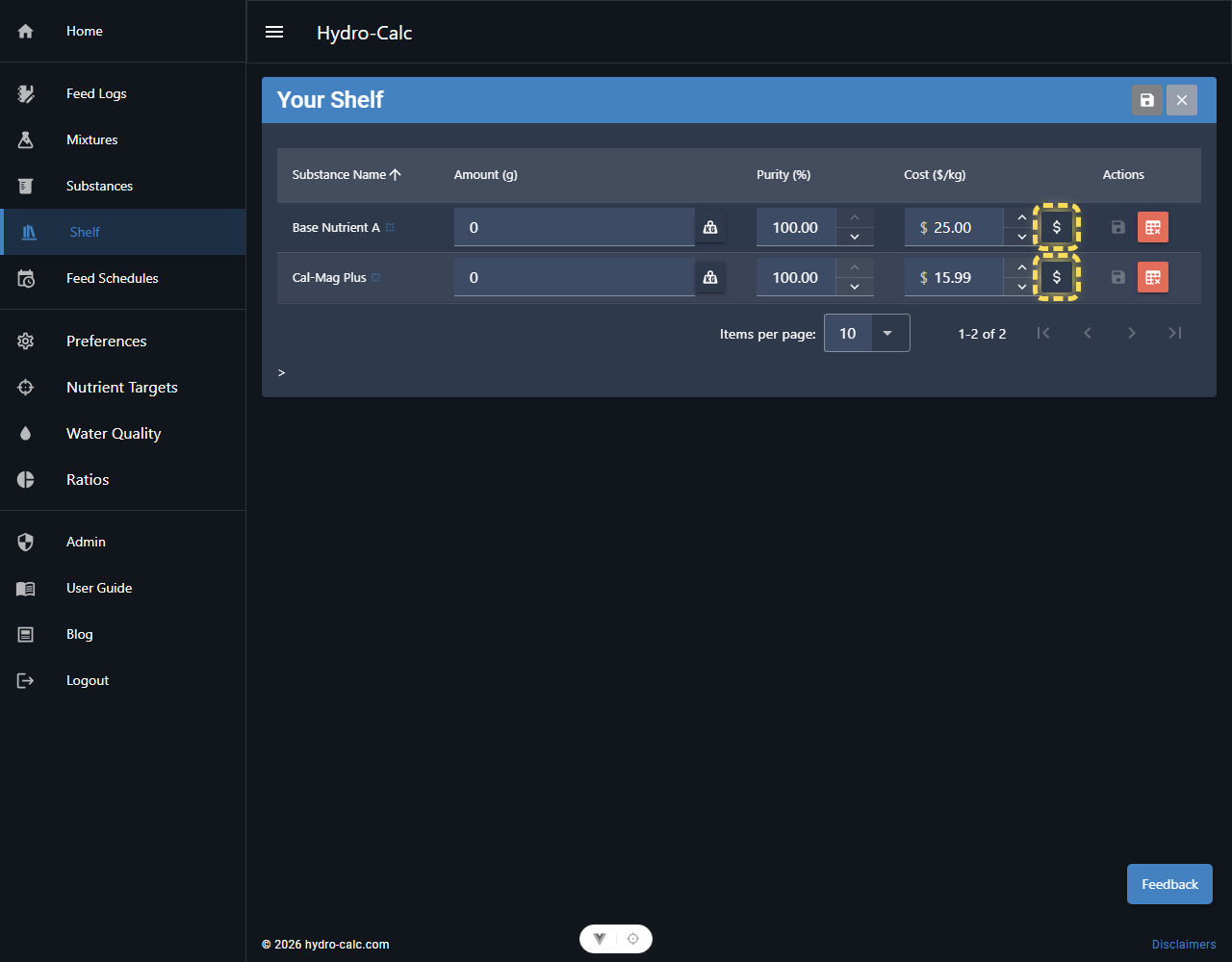
To use any of the cost-related features, you first need to tell the system how much your nutrients cost.
- Navigate to your Shelf.
- Click on a substance to edit it (or add a new one).
- In the edit dialog, look for the Cost field.
- Enter the price you paid and the weight of the container.
- Example: If you bought a 25kg bag of Calcium Nitrate for $50, enter
50for price and25kgfor the weight.
- Example: If you bought a 25kg bag of Calcium Nitrate for $50, enter
- The system automatically calculates the Cost per Gram.
- Click Save.
Pro Tip: Purity Matters
When entering costs, ensure you also update the Purity (%) field for your substances. A "cheaper" fertilizer with 80% purity might actually be more expensive per gram of actual nutrient than a 99% pure product. Hydro-Calc factors purity into the cost-per-gram calculation automatically.
Repeat this for all the substances in your inventory.
2. Optimizing Mixtures for Lowest Cost
When creating a mixture, you often have multiple ways to hit your nutrient targets. For example, Calcium can come from Calcium Nitrate or Calcium Chloride. Which one is cheaper? The "Lowest Cost" solver figures this out for you.
- Open a Mixture.
- Ensure you have defined your Nutrient Targets and selected your Substances.
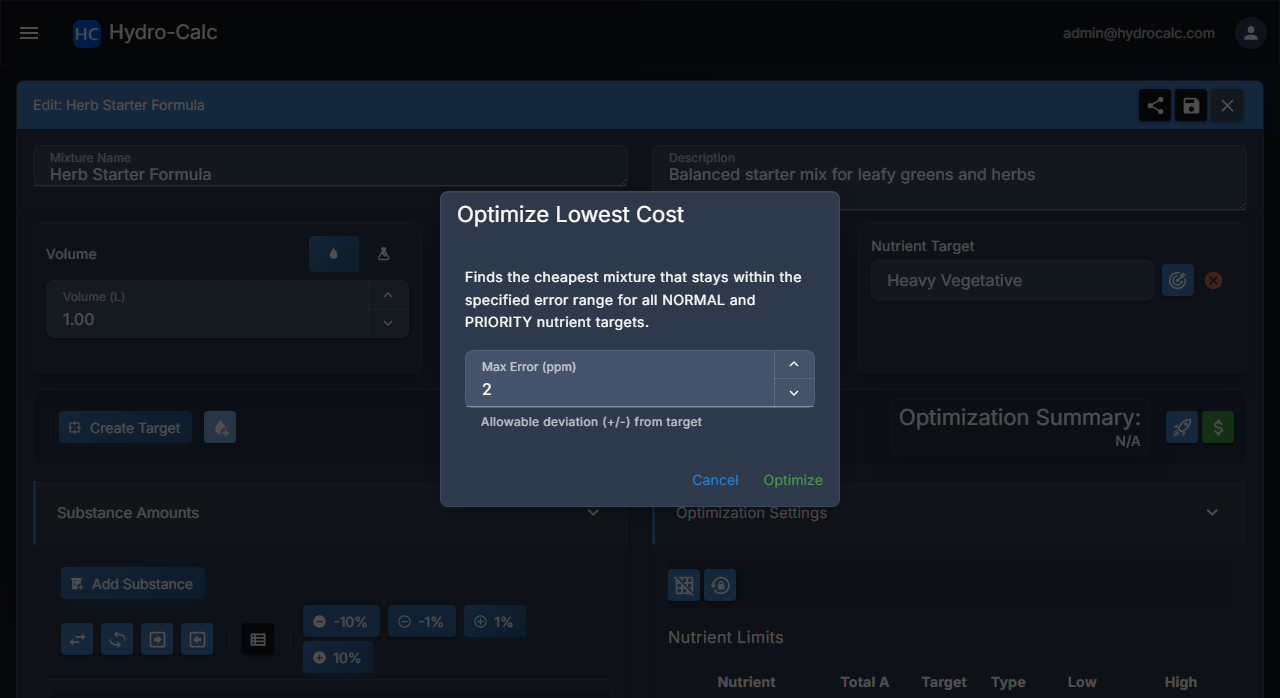
- Click the Optimize Lowest Cost button (the dollar sign icon
$) in the toolbar. - Set Max Error: Enter a tolerance (in ppm). This tells the solver: "Find the cheapest recipe, but allow the nutrients to deviate by up to X ppm if it saves money."
- A higher error tolerance gives the solver more flexibility to find cheaper combinations.
- A lower error tolerance forces strict adherence to your targets, which might be more expensive.
- Click Optimize.
The system will update your recipe with the most cost-effective combination of ingredients that meets your constraints.
3. Analyzing Mixture Costs
Even without running the optimizer, you can see the cost of any mixture.
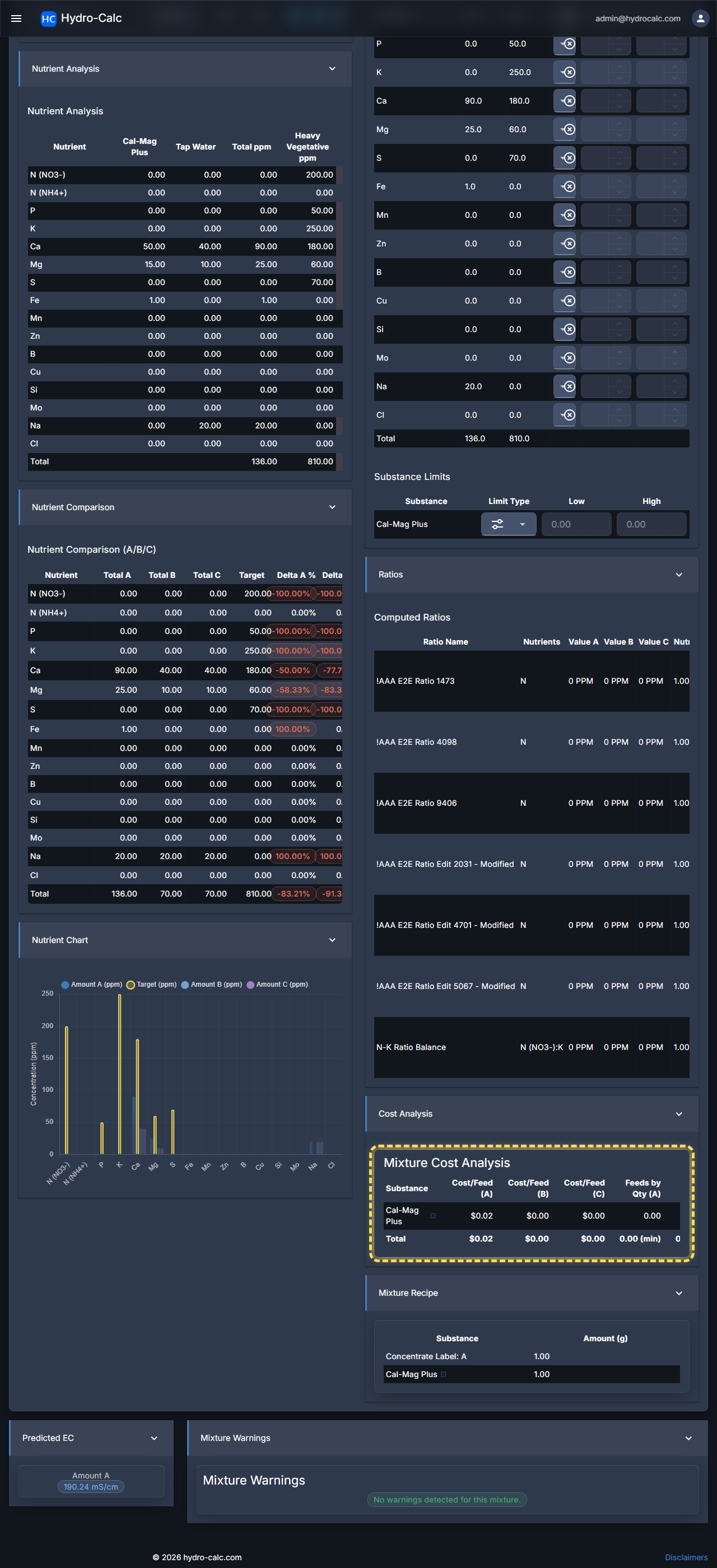
- Cost Analysis Panel: In the mixture editor, scroll down to the "Cost Analysis" panel. It shows a side-by-side cost comparison for Amount A, Amount B, and Amount C, helping you evaluate the financial impact of different recipe iterations.
- Stats: It also breaks down which ingredient is the most expensive part of your mix, helping you identify where to switch products.
4. Projecting Feed Schedule Costs
If you are planning a full grow cycle, you can see the total estimated cost for the entire run.
- Open your Feed Schedule.
- Ensure you have added mixtures and set their durations.
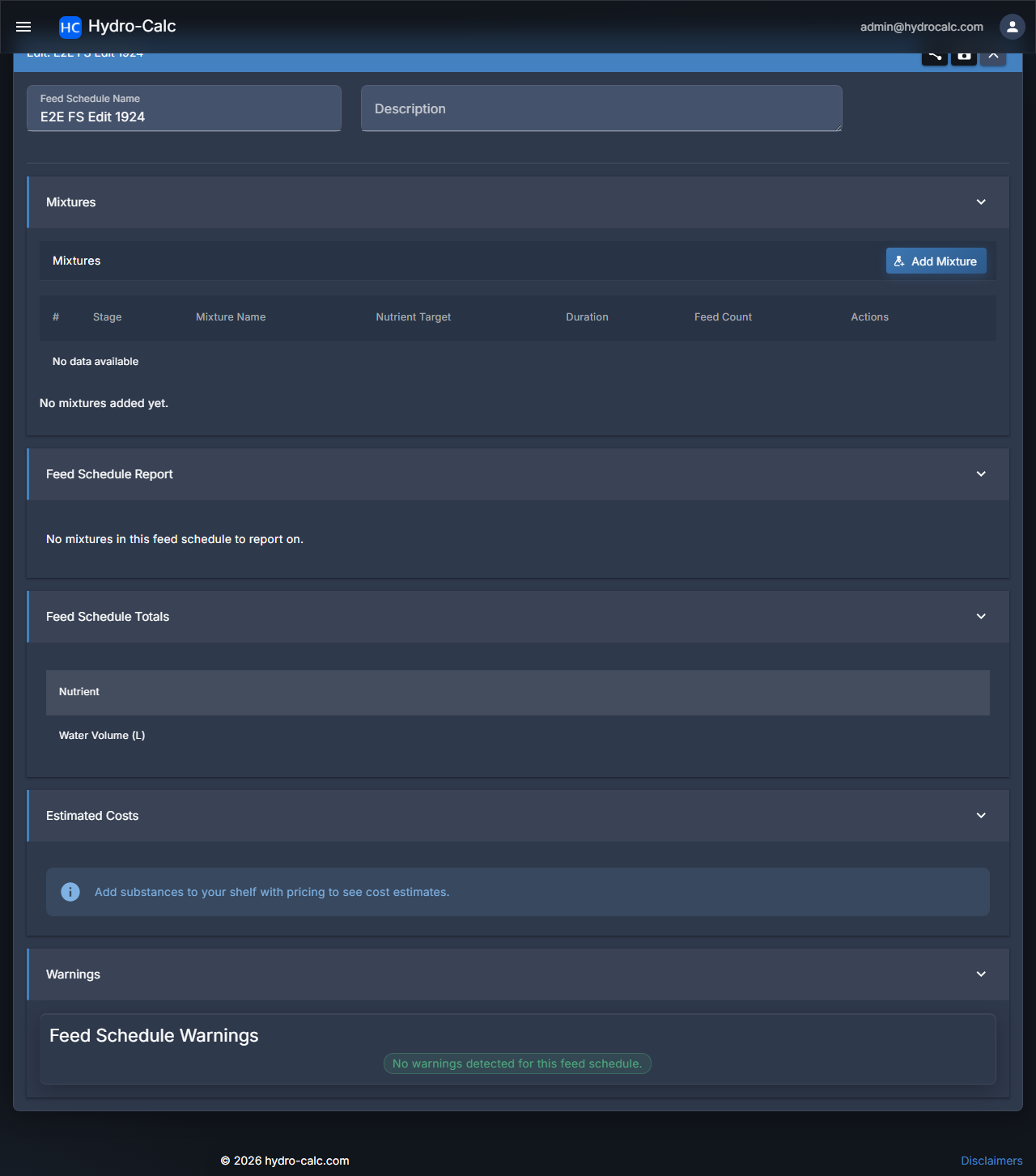
- Scroll to the Cost Analysis section.
- You will see a breakdown of costs per stage (e.g., Veg, Flower) and a Grand Total for the entire schedule.
TIP
This is incredibly useful for commercial budgeting. You can clone a schedule, swap out a brand of nutrients for a cheaper alternative in the mixtures, and instantly see the difference in total cost over the entire lifecycle.
5. Tracking Actual Costs in Feed Logs
Finally, you can track what you actually spent.
- Feed Logs: As you record your feedings in a Feed Log, the system calculates the cost of the nutrients used in that specific feeding.
- Total Spend: At the bottom of the log, the "Statistics" section sums up the total cost of all entries, giving you a precise "Actual Cost" for your harvest.