Appearance
Feed Logs
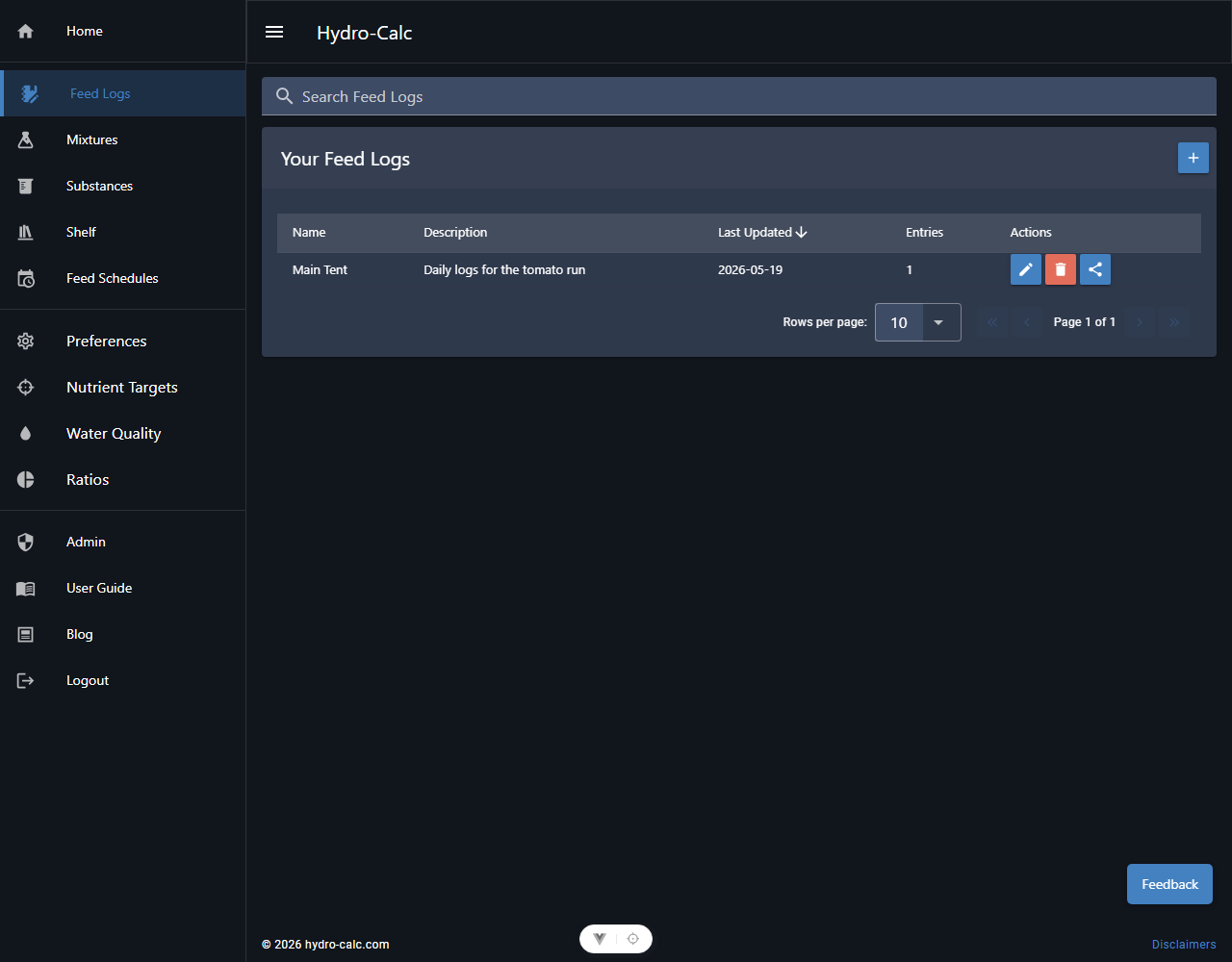
Feed Logs allow you to track the actual application of nutrients and water to your plants. While Mixtures define what to mix, and Feed Schedules define when to mix, Feed Logs record what actually happened.
Navigation
Feed Logs are accessible directly from the main navigation menu. The menu is organized to prioritize your daily workflow:
- Home
- Feed Logs (Record your daily activity)
- Mixtures (Define your recipes)
- Substances (Manage your chemical library)
- Shelf (Manage your inventory)
- Feed Schedules (Plan your grow cycle)
Creating and Managing Logs
- Navigate to Feed Logs.
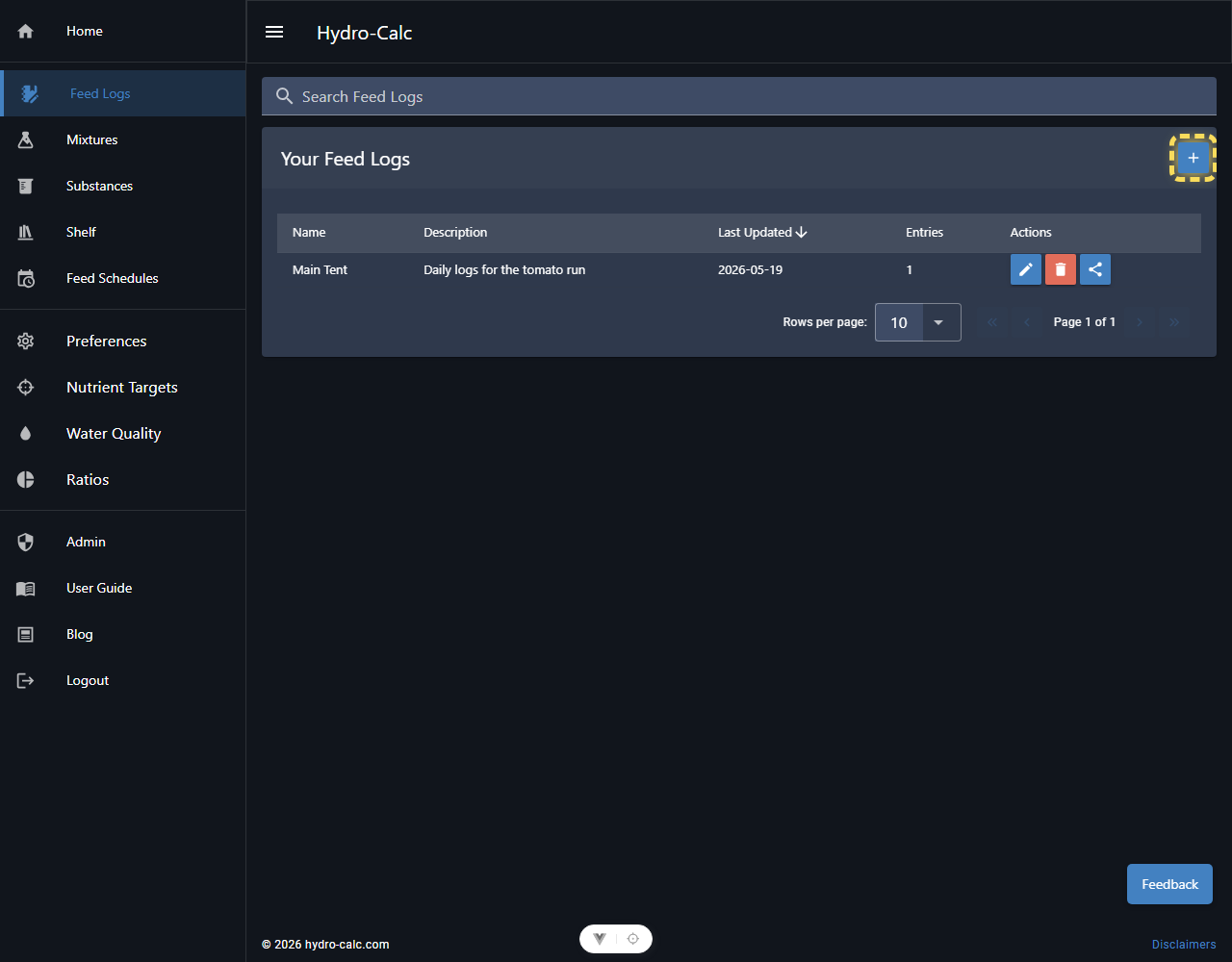
- Click Add New Feed Log to start a new grow journal.
- Give your log a name (e.g., "Spring Pepper Run") and optionally link it to a Feed Schedule.
Pro Tip: You can double-click any row in the main Feed Logs list to quickly open it.
Adding Entries
The log editor supports two primary types of entries to keep your journal clean:
- Log Status: Used for environment-only check-ins. This shortcut creates a row with the additives (Water/Nutrients) suppressed, focusing purely on your reservoir's current pH, EC, and Volume.
- Log Feed: Used when making additions. This button opens up the input boxes for Water and Substances.
- Calculate Top-Off: Our most powerful tool for maintenance. This opens a ratio-based calculator that analyzes your current reservoir state and target mixture to prescribe exact additions.
Smart Top-Off Calculator
The Top-Off tool is deeply context-aware:
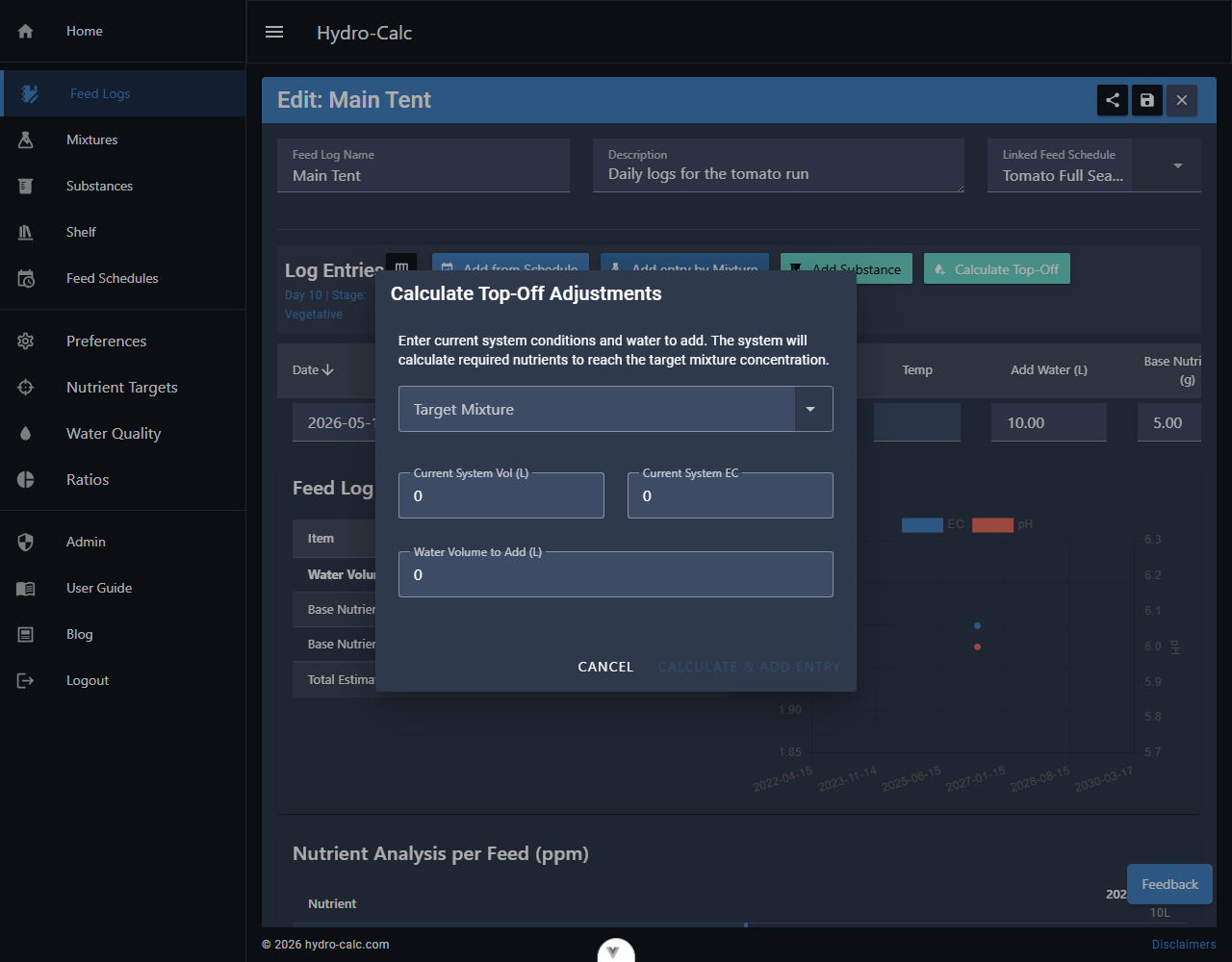
- Historical Memory: It automatically detects your last recorded EC and Volume to pre-populate calculations.
- Recipe Context: The target mixture list is filtered to only show recipes present in your log or linked Feed Schedule.
- Safety Alarms: Includes a non-blocking Overfill Alarm if your planned additions exceed historical max volumes, and an EC Block if your target is unreachable without a water change.
- Unit Precision: Operates in native microsiemens ($\mu S/cm$) for 1:1 matching with your hand-held sensors.
Tracking Measurements
Every entry acts as a single point-in-time observation of your reservoir state:
- System Volume (L): The total liquid volume currently in the reservoir.
- Additions: (Feed entries only) The amount of water and individual substances added during this event.
- Environmental Data: Measured pH, EC ($\mu S/cm$), PPM, and Temperature.
- Notes: Flexible observations about plant health or reservoir drift.
Note: We use a unified model where every row represents the state after any recorded additions, eliminating the need for complex "Before/After" tracking.
Integration with Mixtures
Feed Logs are tightly integrated with your Mixture profiles:
- Interactive Links: If an entry was created from a mixture, its name will appear in the Mixture column. Clicking this name will take you directly to the Mixture Editor.
- Save Actuals as Recipe: You can save the actual amounts used in a feeding event as a permanent recipe. Click the Create Mixture from Entry (flask icon) on any row to generate a new Mixture profile pre-filled with that entry's water and substance data.
Customizing the Table
Column Re-ordering
The Feed Log table is dynamic. When you use a new substance, a column is added for it automatically. You can re-order these columns to your preference:
- Click the Rearrange Columns icon button in the Log Entries toolbar to enable rearrange mode.
- Use the Left/Right Arrows that appear in the column headers to move substances to your desired position.
- Click the button again to hide the arrows and lock your layout.
Your preferred order is saved permanently with the log.
Column Visibility
If you don't track certain metrics (like Temperature or PPM), you can hide those columns globally across all logs.
- Navigate to Settings.
- Under Display Preferences, look for the Feed Log Column Visibility section.
- Toggle the checkboxes for the columns you wish to see.
- Click Save in the top toolbar.
Statistics and Analytics

At the bottom of every log, the Feed Log Statistics section provides:
- Totals: Cumulative volume of water and weight of substances used.
- Costs: An estimated total cost based on the prices set in your Shelf.
- Trends: Interactive line charts showing your pH and EC over the course of the log.
Nutrient Analysis & Graphs
Below the main statistics, the Nutrient Analysis per Feed table offers a detailed chemical breakdown:
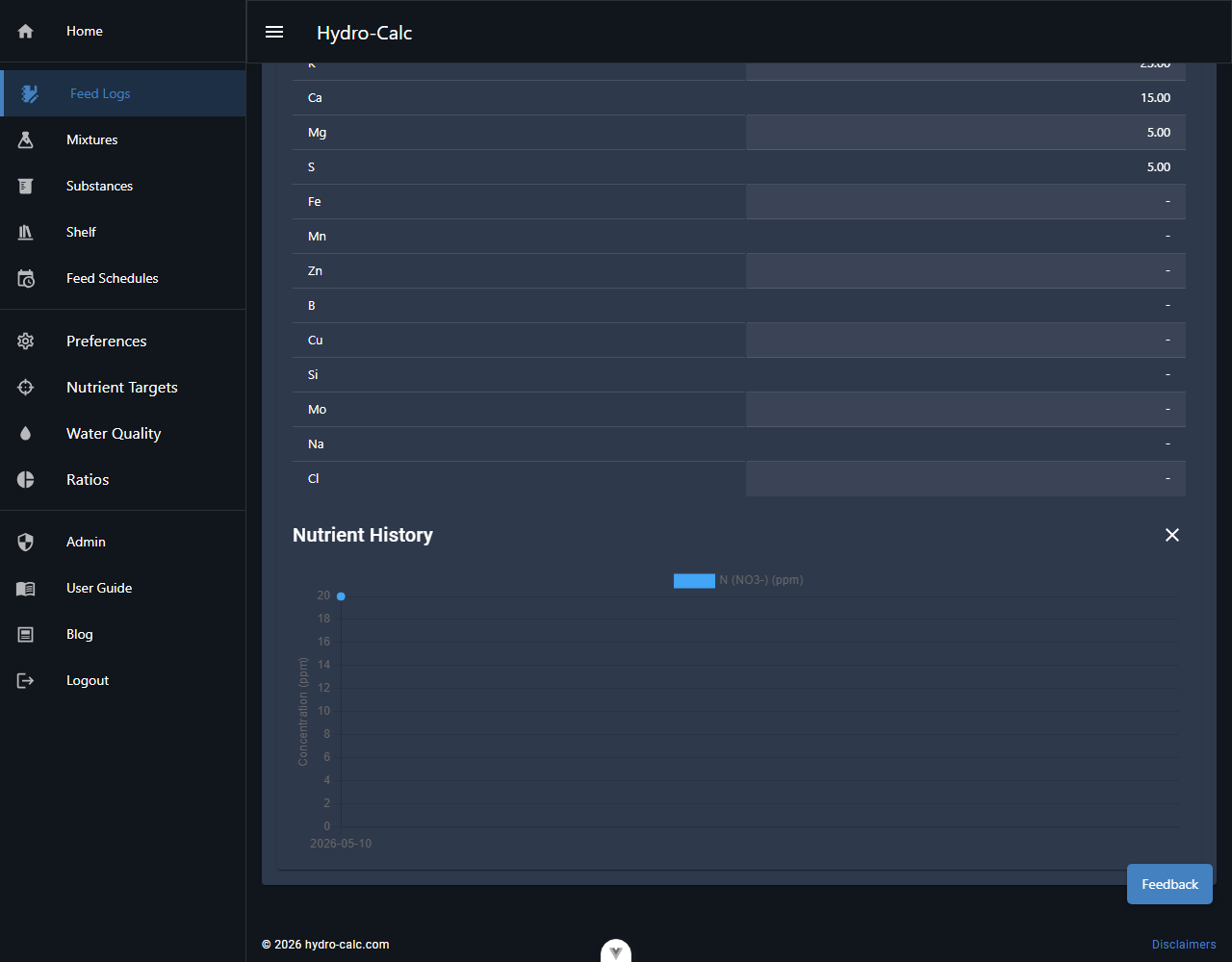
- Precision Analysis: View the calculated ppm (parts per million) for every nutrient element (N, P, K, Ca, etc.) for each individual feed entry.
- Trend Graphing: Click on any nutrient name (e.g., Nitrogen (N)) in the row header to instantly generate a line graph below the table. This allows you to visualize how that specific nutrient's concentration has changed throughout your grow cycle.
- Default View: The graph defaults to showing Nitrate (N-NO3) levels, which is often a key indicator of nutrient strength.
Sharing
You can share your Feed Logs with the community:
- Click Save and Share in the log editor toolbar.
- Copy the generated link.
- Anyone with the link can view a read-only version of your log, including all stats and charts.
Privacy Note
Your personal financial data is never shared. The "Cost" column and cost statistics are automatically hidden in the shared view, so you can share your technical results without revealing your budget or supplier pricing.